How to Troubleshoot Cold Email Bounces and Fix the Right Problem

Email bounce data for cold outreach is often limited, but it is still enough to troubleshoot effectively. Most platforms surface only a basic bounce label and a short reason text, which makes it easy to misdiagnose the root cause and apply the wrong fix.
This article provides a structured bounce triage process based on the signals tools reliably provide, including hard versus soft classification, common reason text phrases, and simple concentration checks by inbox provider, recipient domain, and sending mailbox. The outcome is a clear determination of whether you are facing a list quality issue or a sender deliverability issue, along with the next action to take before you scale.
TLDR
-
Start with the hard vs soft label, then read the bounce reason text
-
Hard bounces usually indicate list quality problems or outdated data
-
Soft bounces usually point to rate limiting, throttling, or temporary sender trust issues.
-
Check by clustering by a single inbox provider, a single sending mailbox, or a single recipient domain
-
Save screenshots of the bounce reason text so the right fix gets applied and vendor accountability stays clear
Bounce Triage Flowchart for Cold Email Bounces
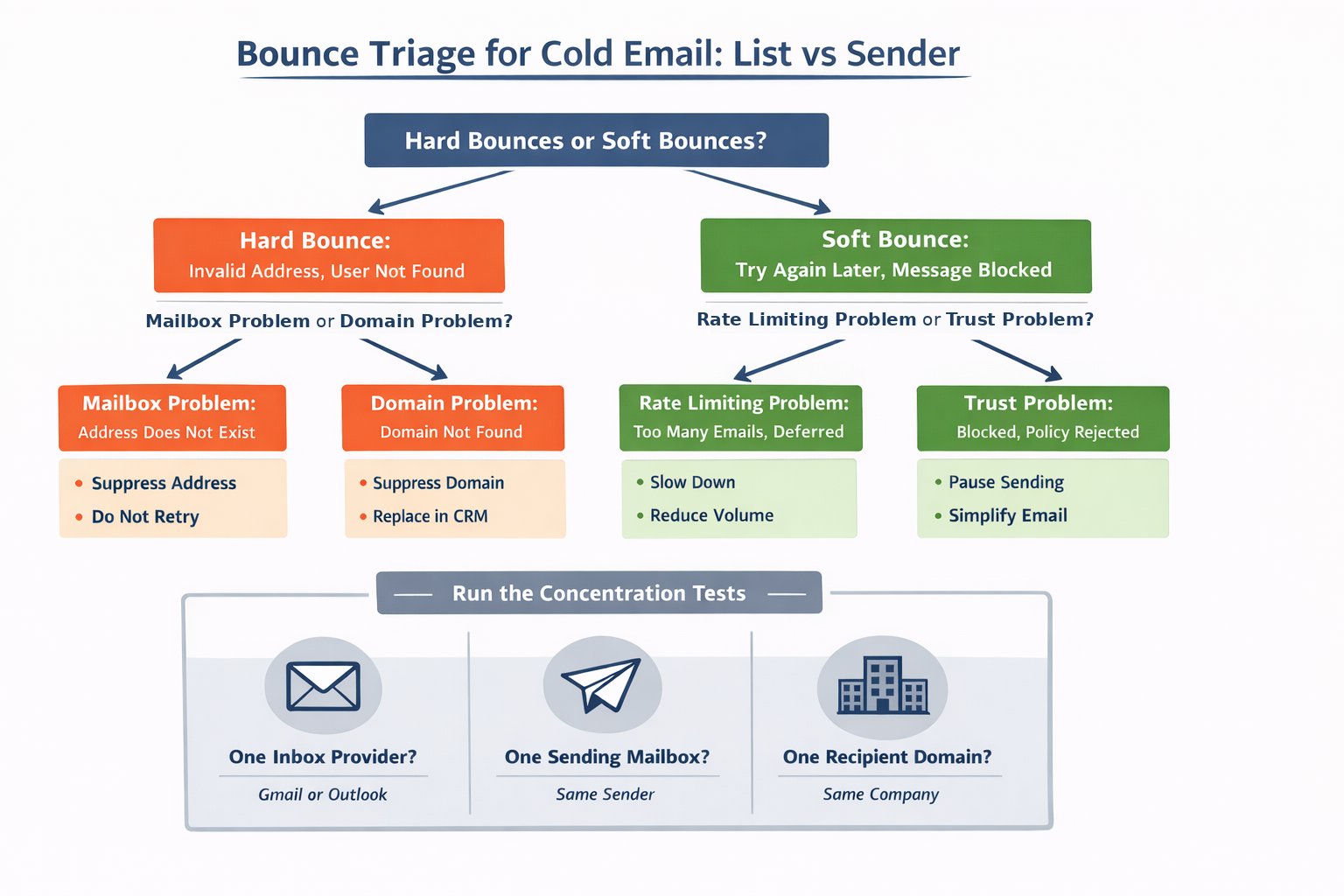
Step 1: Are Your Bounces Mostly Hard or Mostly Soft?
Start by confirming whether your platform separates bounces into hard and soft.
Mailchimp defines hard bounces as permanent delivery failures and soft bounces as temporary delivery issues.
If most bounces are hard
Treat it as a list quality issue or outdated data until proven otherwise.
If most bounces are soft
Treat it as a sender issue, such as rate limiting, throttling, or temporary trust, until you see evidence otherwise.
If your tool does not label hard vs soft, use the reason text keywords in the next section.
Step 2: Use the Reason Text
These are the kinds of phrases people actually see in tools like Mailchimp reports and in bounce notifications.
Bucket A
List problem: The address or mailbox is no longer valid
Common reason text:
-
Recipient address does not exist
-
Invalid address
-
User does not exist
-
Mailbox disabled
What to do:
Suppress the address immediately and do not retry. If this spikes right after a new list import, treat the list source as the likely cause. Use human-verified lists to significantly reduce bounce rates.
Bucket B
List problem at the domain level: The company domain cannot receive mail
Common reason text:
-
Domain name does not exist
-
Nonexistent domain
-
No mail server
-
Cannot deliver to this domain
What to do:
Suppress the entire domain and replace the company domain in your CRM before you retry anyone there. Treat this as a strong signal that your data freshness and vendor quality need attention.
Bucket C
Sender rate limiting: Temporary deferrals and limits
Common reason text:
-
Recipient server has been sent too many emails during a period of time
-
Try again later
-
Deferred
-
Temporarily rate limited
What to do:
Reduce your hourly sending pace, cap messages per recipient domain per day, and spread sends throughout the day instead of sending in bursts. If your tool retries automatically, slow down the retry behavior as well.
Bucket D
Sender trust or policy block: Providers are reacting negatively to your current sending pattern
Common reason text:
-
Message blocked due to content
-
Message does not meet the recipient server policies
-
Blocked
-
Rejected due to policy
-
Spam like behavior
What to do:
Stop scaling right away and reduce your volume, then keep the first email simple. Narrow your targeting to reduce negative engagement, and while you rebuild trust, minimize higher risk elements like many links, heavy tracking, and aggressive follow ups.
Step 3: Run the Concentration Tests
If your tool only shows that emails bounced and the reason is vague, don’t spend time reviewing contacts one at a time. You’ll get a faster answer by looking for patterns across all of the bounces.
Start by exporting a list of every bounced recipient and capture the email domain for each address. If your system shows which sending mailbox was used, include that as well. With those two fields, you can group the bounces into a few straightforward categories and see where the failures are clustering.
What matters is concentration. When bounces are heavily weighted toward one inbox provider, one sending mailbox, or one company domain, the underlying issue is usually clear. The three checks below help you identify which of those is driving the problem so you can take the right next step without guessing.
Test 1
Does it concentrate on the inbox provider?
If most bounces come from one provider, it usually means that provider is rate limiting you or treating your sender as higher risk.
Test 2
Does it concentrate on the sending mailbox?
If one mailbox accounts for most bounces, pause that mailbox and shift volume to your other mailboxes.
Test 3
Does it concentrate on the recipient domain?
If a single company domain accounts for a large share of the bounces, pause sending to that domain and reintroduce it later at a slower send rate.
These three checks are a practical way to troubleshoot when a platform only shows that emails bounced with no additional detail.
Step 4: Use the Inbox Bounce Notification as Your Backup Source
If your tool’s reporting interface is limited, review the bounce notifications in your inbox for the underlying detail.
These bounce notification emails often include the full server response, typically sent by Mailer Daemon or Postmaster, and they usually explain why delivery failed.
What to do:
Search your inbox for Mailer Daemon or Postmaster, and search for the recipient domain, such as “example.com”. Save a few bounce notifications as screenshots so you can include them in your report and use them in the conversations with vendors.
Cold Email Bounce Template
Create a simple table with these columns
-
Recipient domain
-
Bounce type label (hard or soft)
-
Bounce reason text
-
Sending mailbox
-
Date sent
Then answer these questions
-
What percent are hard vs soft?
-
What are the top 10 recipient domains producing bounces?
-
Which sending mailbox produces the most bounces?
-
What are the top 5 reason text phrases you are seeing?
-
Did the spike start right after a list change or a sending change?
The hard versus soft breakdown tells you what kind of problem you’re dealing with. Hard bounces usually point to bad addresses or dead domains. Soft bounces usually point to deliverability, throttling, or temporary blocks.
The top recipient domains tell you whether the trouble is coming from a small handful of companies that should be paused and handled separately, or whether it’s spread across the whole list, which points to a broader issue with data quality or list freshness.
Looking at bounces by the sending mailbox helps you catch cases where one sender identity is responsible for most of the failures. When that happens, pause that mailbox and move volume to your other senders.
Finally, the reason text is still useful even when it’s short. It often gives you the simplest explanation you can act on, even without error codes.
After you review the table, take one clear corrective step, then run a smaller send and check results before you scale back up.
If the template points to list issues, suppress the bounced addresses and any dead domains, then replace the segment that looks stale.
If it points to sender issues, slow down, cut volume, and avoid big bursts while things settle.
If it points to one recipient domain or one sending mailbox, pause that specific domain or mailbox, then bring it back later using a safer, slower lane.
Stop Rules
Stop rules act as guardrails so a bounce spike does not turn into a broader deliverability issue. Instead of waiting until results deteriorate, you define clear thresholds that trigger a slowdown or a pause, so you do not continue sending while the signals are negative. The goal is a consistent, repeatable decision process, even when your tool only provides a basic bounce label and brief reason text. Use the rules below to decide when to pause scaling, when to reduce send pace, and when to isolate a specific recipient domain or sending mailbox before proceeding.
Use simple rules you can easily enforce:
-
If blocks or policy related failures increase day over day, pause further scaling until rates stabilize
-
If temporary or try again later failures increase materially, reduce sending pace and monitor impact
-
If a single recipient domain accounts for a disproportionate share of failures, pause sending to that domain and review before resuming
-
If a single sending mailbox accounts for a disproportionate share of failures, pause that mailbox and reallocate volume until the issue is resolved
Vendor Accountability for Bounces and Replacement Policies
If the triage indicates the issue is list quality, the replacement policy should be documented in writing before moving forward. That documentation should clearly state what will be replaced, such as bounces from invalid addresses, deleted or removed mailboxes, and nonexistent domains. It should also clearly state what will not be replaced, such as bounces from throttling, deferrals, and policy related blocks.
Treat freshness as a requirement. Clarify how often the segment is refreshed, when verification is performed relative to the send date, and ask for a defined freshness window for the exact audience you are sending to.
Request suppression exports that can be used immediately. Ask for a suppression file that can be imported as is, in the format needed for production. Also request domain level suppression guidance for cases where an entire domain is effectively unreachable, so those addresses can be suppressed consistently.
Key Takeaway
Cold email bounces are solvable when you treat them like a classification problem. Start with hard versus soft, use the reason text to place each bounce into a clear bucket, then check whether failures cluster by provider, recipient domain, or sending mailbox. Apply one targeted fix, retest on a smaller send, and only scale once bounce rates stabilize.
FAQ
Why are my cold emails bouncing if the emails were verified?
Verification lowers risk, but it will not eliminate bounces. Some mail systems still reject unfamiliar senders. Domains and mailboxes change over time. And even a clean list can become old in the time between verification and delivery. To figure out what is really happening, look at the bounce reason text and group failures into clear clusters. That makes it much easier to tell whether the root cause is list quality or sender trust.
What bounce types hurt sender reputation most?
Blocked and policy related failures are the early warning signals. When those start rising, pause and cut volume. Soft bounces that look like throttling are another clear cue to slow down and let things stabilize.
My tool only shows that emails bounced with no explanation?
Run the clustering checks and review bounce notifications in the inbox. Many bounce notices include a plain language reason, and they can serve as the primary source of truth when identifying what is failing and why.
Ready to reach fresh, human-verified leads today?
Start for FreeRelated articles

Why Nobody Answers Your Sales Calls
If your outbound calls aren’t getting answered, it’s often because the number isn’t usable, your calls are being labeled as spam, or the call feels unfamiliar and low priority. This guide shows how to identify which it is and what to fix first.

You Verified the Email List: So Why Did 20% Not Deliver?
You verified your email list, but a large chunk did not deliver. Learn why providers defer or throttle sends, how to read 4xx and 5xx codes, and how to fix pacing and authentication.

6 Best List Hygiene Checks to Run Before Sending Cold Email at Scale
Run six list hygiene checks before scaling cold email to protect deliverability and results. Dedupe contacts, apply suppression, remove risky inboxes, and verify fit.
